
What you'll need
- A Copilot licenseYour account must show M365 Copilot (Premium), bottom left. On Basic, Aria won't run.
- Your work accountOpen Copilot Chat in your browser, signed in with your work email: m365.cloud.microsoft/chat
- Your Aria loginThe Convosight account you already use for Aria
Install & access
Step 1 of 6
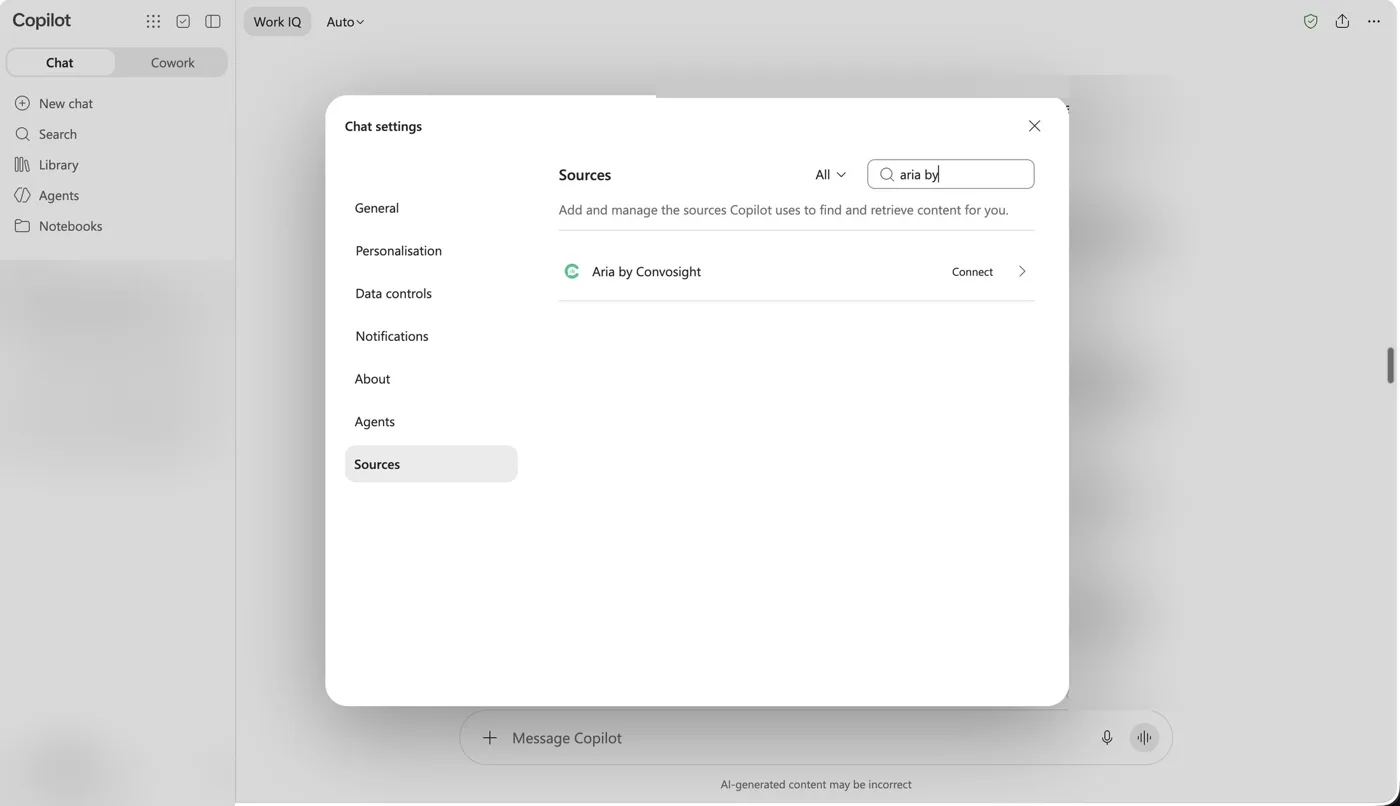
Find Aria in Sources
- Open Settings → SourcesClick the gear next to your name, bottom left, then Sources
- Search and connectType aria by, then click Connect
Step 2 of 6
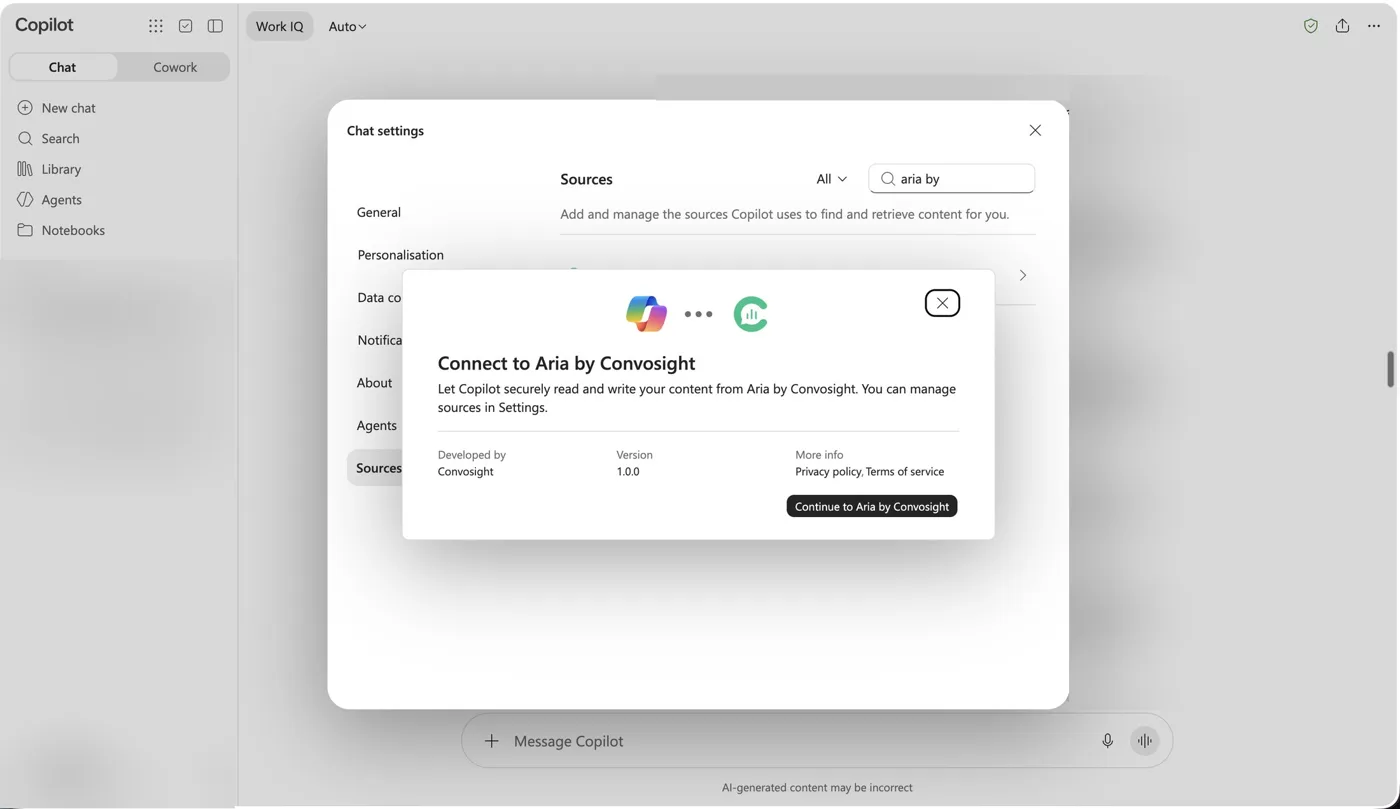
Continue to Aria
- Check the developerThe window shows Developed by Convosight
- Click ContinuePress Continue to Aria by Convosight
Step 3 of 6
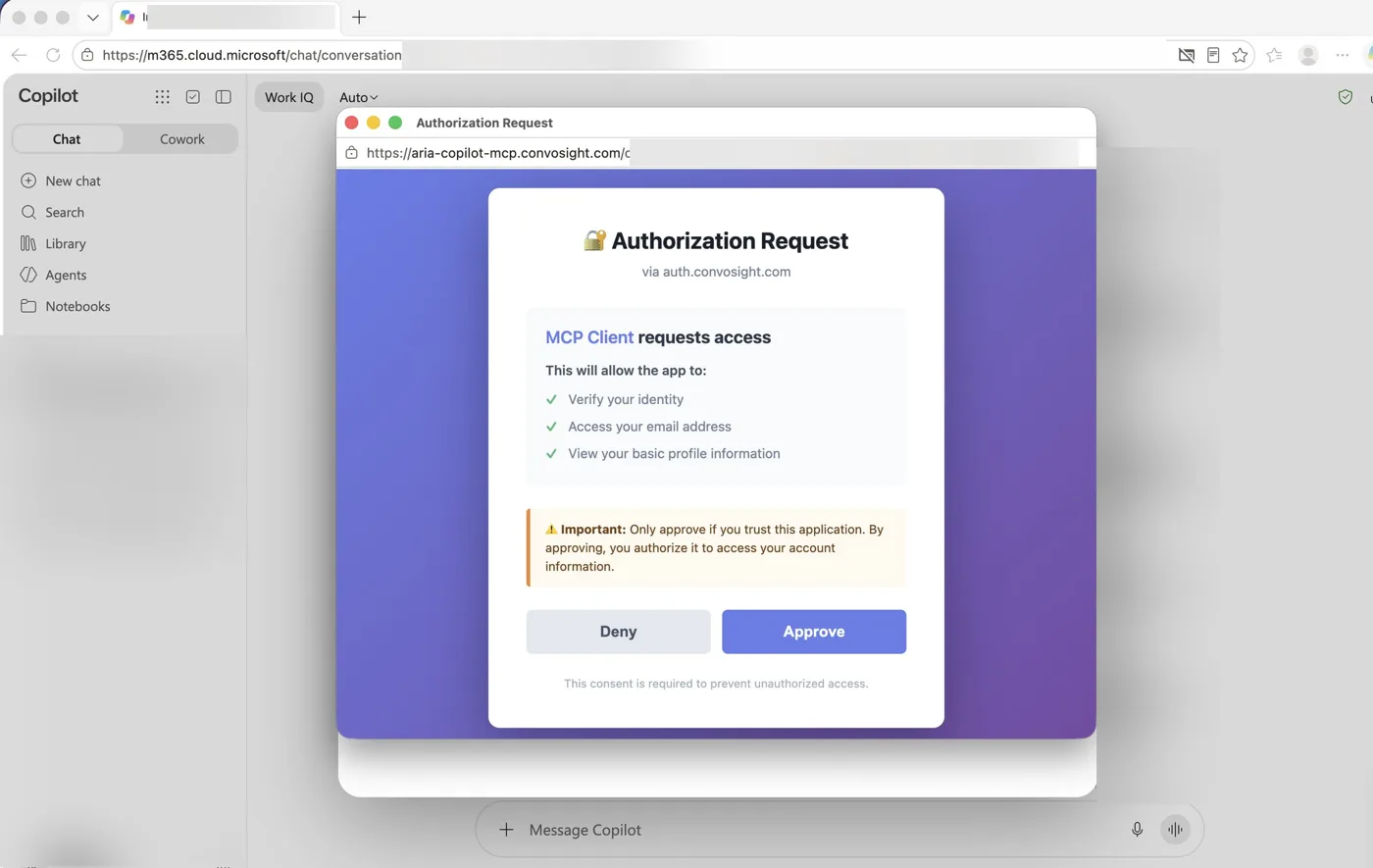
Sign in and approve
- Use your Aria loginSign in with your Convosight account if asked
- Click ApproveAria only reads your identity, email and basic profile
Step 4 of 6
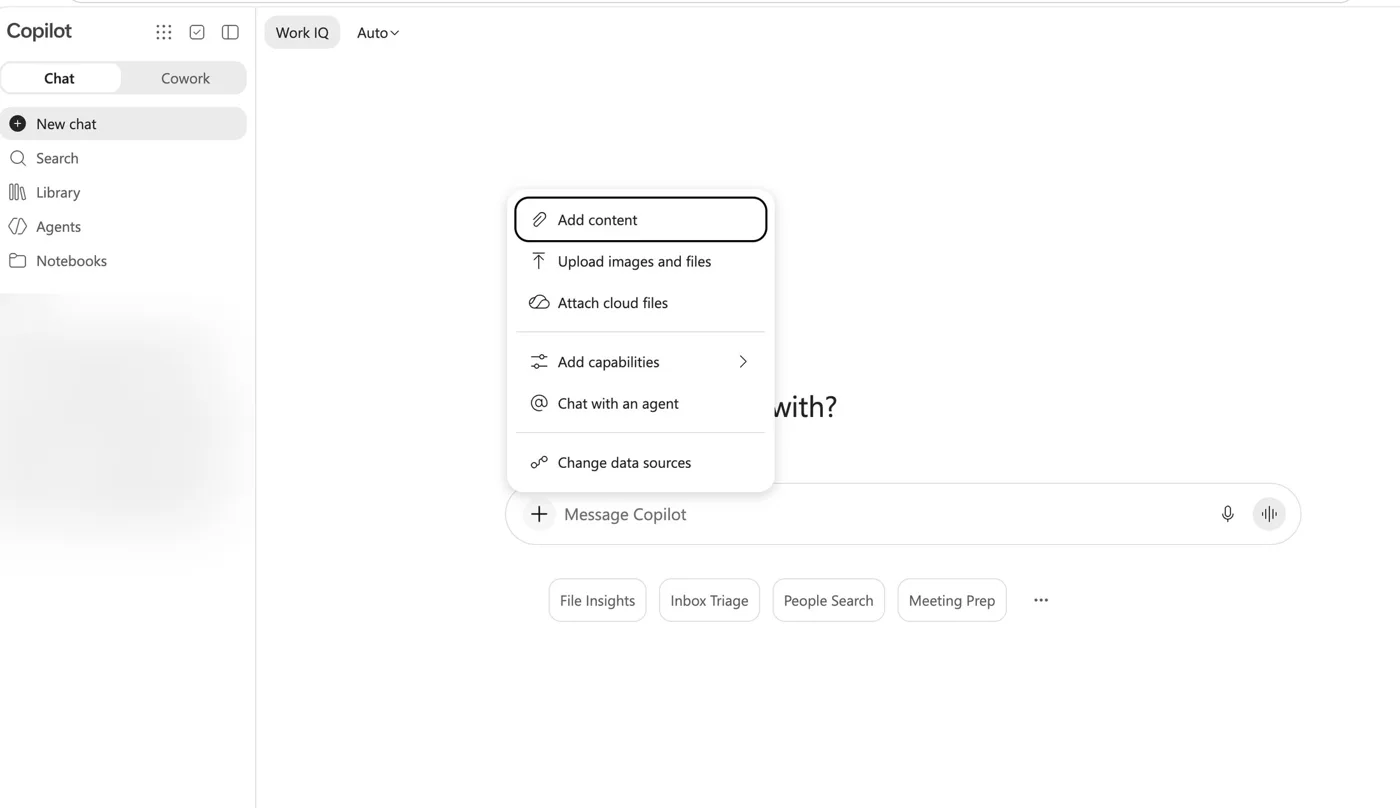
Open a new chat
- Start freshClick New chat, top left
- Change data sourcesClick + in the message box, then Change data sources
Step 5 of 6
Switch Aria on
- Turn on the toggleNext to Aria by Convosight, until it says 1 source enabled
- Do this in each new chatSources are switched on chat by chat
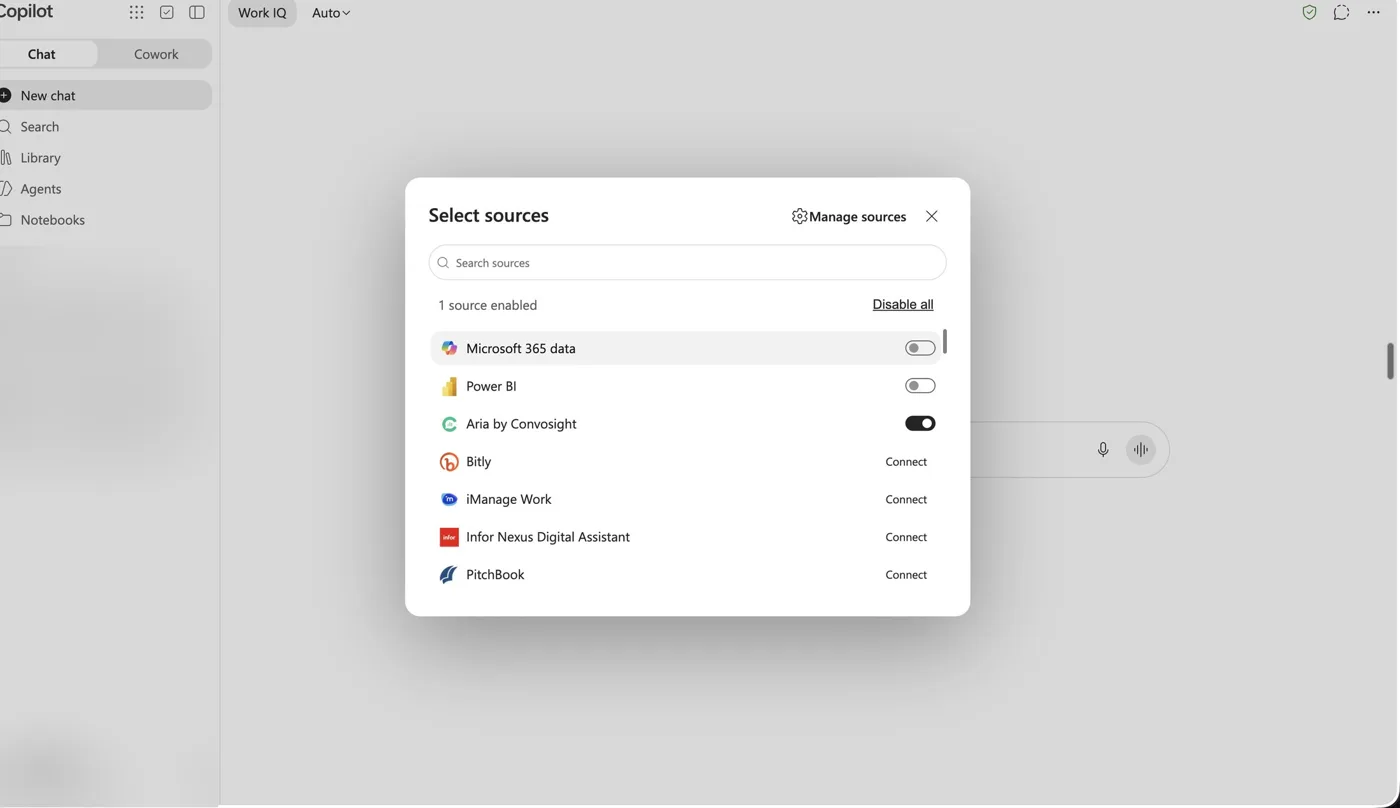
Step 6 of 6
Ask your first question
- Name a brand, category or marketFor example: What are the top 3 vegan ingredients trending in India for the past 3 months?
- Look for the green Aria iconIt marks every insight that comes from Convosight data
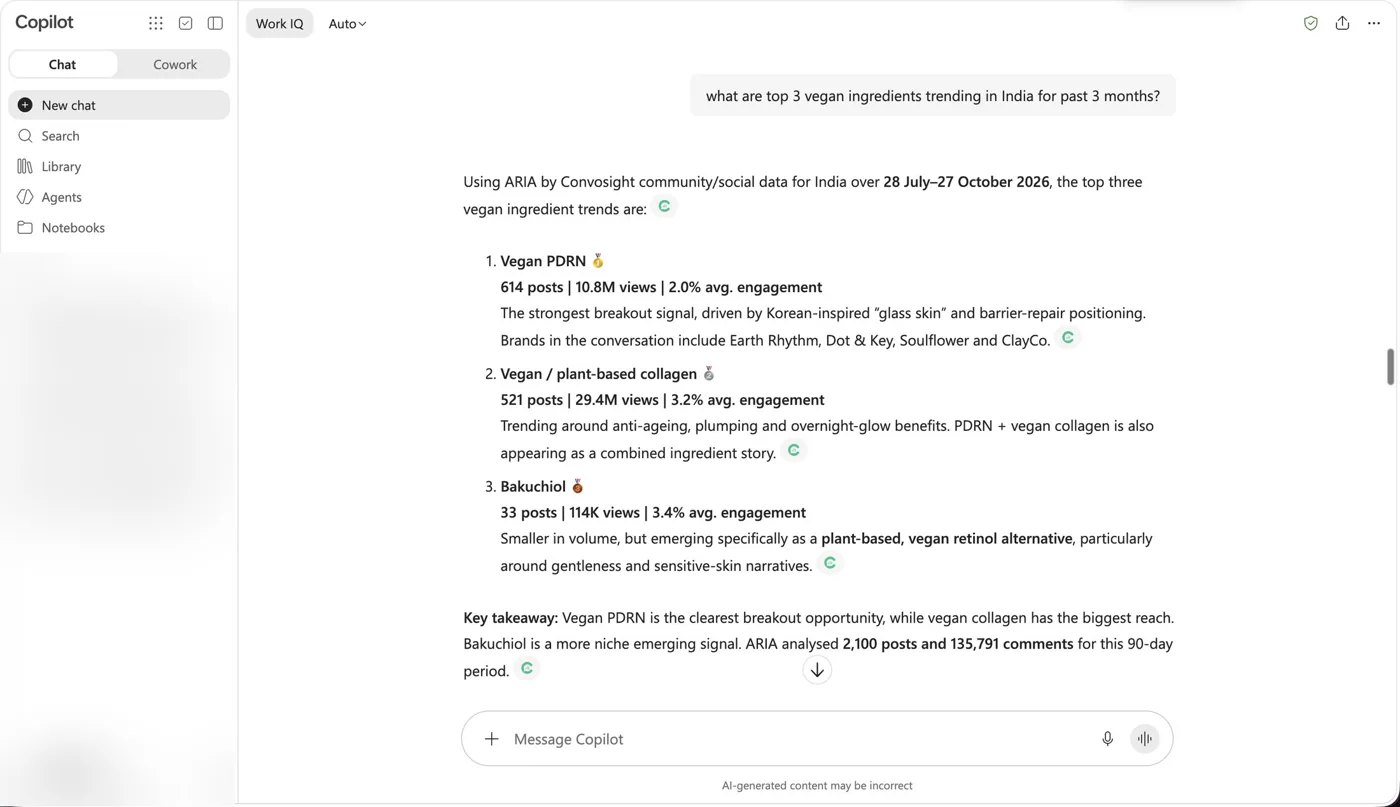
Questions to ask Aria
01What are the top 3 vegan ingredients trending in India for the past 3 months?
02What diaper brands win highest trust among Indonesian moms?
03Which creators drive the most engagement for skincare in India?
You're in
Aria is ready inside Microsoft 365 Copilot.
What you get
- Insights grounded in millions of real social conversations
- Answers right where you already work
Need help?
- Need help?Need help? Write to reachus@convosight.com
- Aria not in Sources?Your IT admin may need to allow the app
- Copilot says Basic?Ask IT for the Microsoft 365 Copilot add-on
Download this guide (PDF)Same steps, ready to share with your team.